
Polling And Logging Water Meters to CSV files
A complete guide to read data from RS232 or RS485-compatible water meters and exporting parsed values directly into a CSV file with your value-column binding and log files rotation
1. Protocol Configuration: Flow & Water Meters
Communication Type: Active Polling (M-Bus / MODBUS)
Industrial water meters usually communicate via M-Bus (Meter-Bus) over RS232/RS485 using a level converter. Use the 'M-Bus Data Parser' plugin. The logger sends a REQ_UD2 (Request for Class 2 Data) frame to the specific meter address, and the parser will decode the responding telegram into volume, flow rate, and temperature variables.
Apply this base configuration for the serial connection:
{
  "port": "COM2",
  "baud_rate": 2400,
  "data_bits": 8,
  "stop_bits": 1,
  "parity": "even",
  "protocol": "mbus_en13757",
  "poll_interval_ms": 60000
}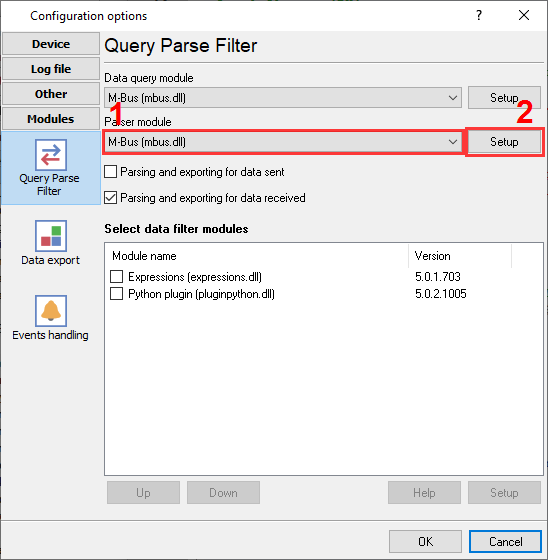
M-Bus plugin selection to read water meter data.
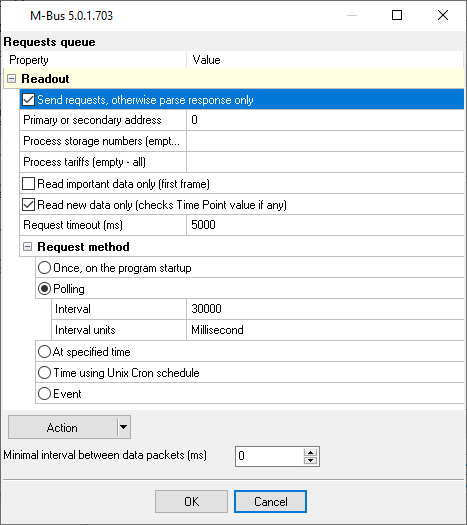
M-Bus plugin configuration.
Ready to connect Flow & Water Meters to CSV File?
2. Database Setup: CSV File
Use the built-in 'Local database' export module. No external drivers are necessary.
Use the following SQL script to create your target table. Do not log continuously into a single CSV file for years. Use the software's 'Log File Rotation' setting to automatically start a new file daily (e.g., `Log_YYYYMMDD.csv`). This prevents files from becoming too large to open in Excel.
No SQL required. You can define a custom header row in the plugin settings to match the exported variables.
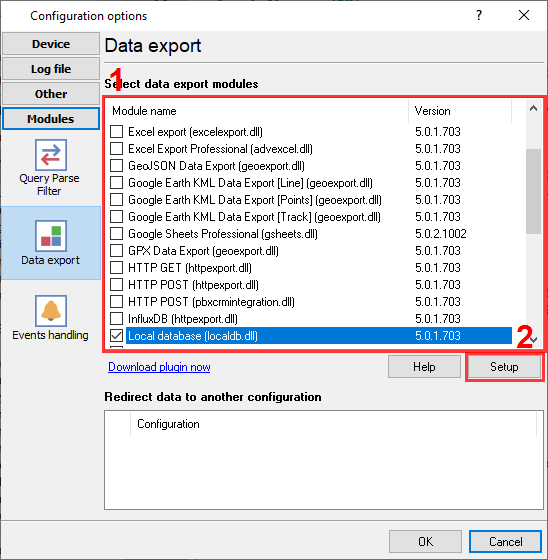
Plugin selection to export parsed data to CSV or text files.
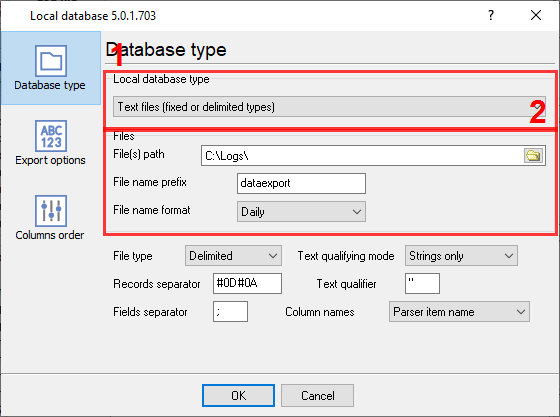
CSV export: file type selection and fine tuning.
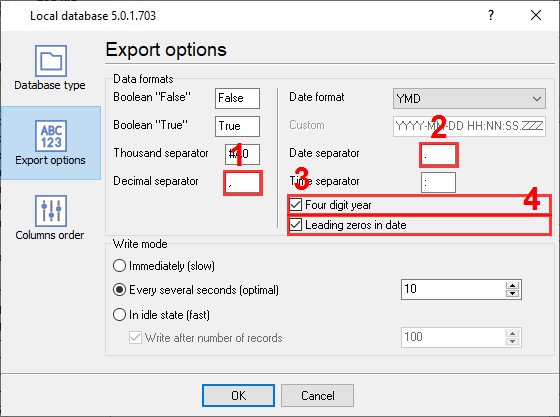
CSV data formatting rules (date, numbers, etc.).
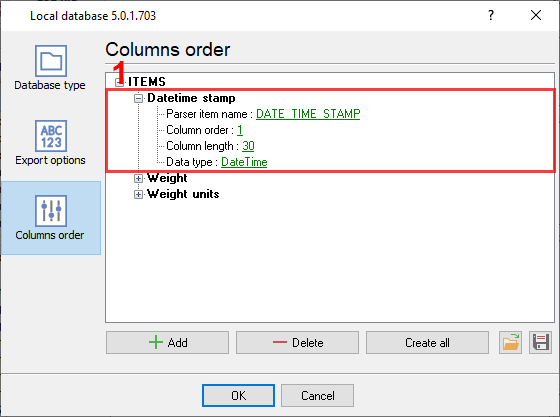
Column configuration in CSV files.
3. Protocol-Specific Troubleshooting
- Receiving garbage hex data instead of M-Bus telegrams: M-Bus strictly requires Even parity. Check your COM port settings in the Data Logger and ensure it is set to 8 Data Bits, 1 Stop Bit, and Even Parity.
- The logger displays non-readable data (strange characters) instead of expected HEX codes: You need to change the "Data View" mode in logger's settings. Select "Display as #XX" for all byte ranges.
- What values can the logger read: M-Bus allows the logger to read all available values at once. The logger exports them as separate values (variables).
4. Database-Specific Troubleshooting
- Excel opens the file but all data is squeezed into one column: This is a regional settings issue. In North America, the list separator is a comma (,), but in Europe, it is often a semicolon (;). Ensure the delimiter set in the Data Logger matches the regional settings of the PC opening the file.
- How to get my serial.print to be written into a CSV file: This is the simplest case. The logger does not need to process something in your case. Just enable logging to a file before parsing and change the log file extension to 'csv'.
- Can I write CSV data to a network share to use it from my computer?: Yes, you can specify the destination path as '\\server_name\folder\filename.csv'. If your incoming data is fast, it is better to create a new log file frequently, for example, every hour.