
Polling And Logging MODBUS RTU Device to Postgre SQL
A complete guide to read data from MODBUS RTU serial devices and exporting parsed values directly into a PostgreSQL database with your database structure.
1. Protocol Configuration: MODBUS RTU
Communication Type: Active Polling (Master/Slave over RS485/COM)
Because MODBUS transmits data in binary, the parser must extract specific Holding Registers (e.g., 40001) or Input Registers. If your sensor uses 32-bit floating-point numbers, configure the parser to read two adjacent 16-bit registers and apply the correct byte-swapping (endianness) to reconstruct the float.
Apply this base configuration for the serial connection:
{
  "port": "COM3",
  "baud_rate": 9600,
  "data_bits": 8,
  "stop_bits": 1,
  "parity": "none",
  "protocol": "modbus_rtu_serial",
  "poll_interval_ms": 1000
}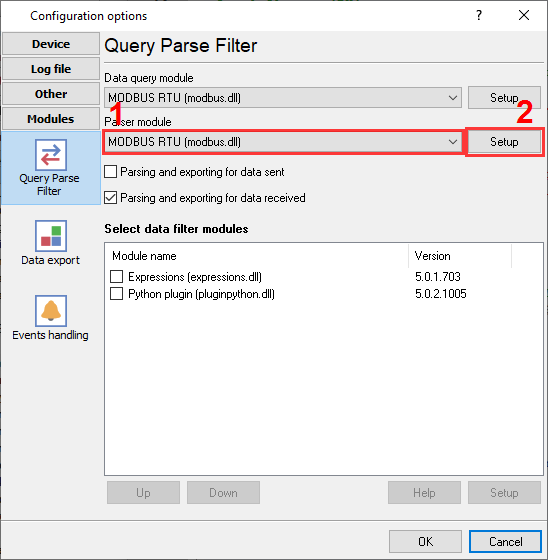
MODBUS RTU plugin selection to query and parse data.
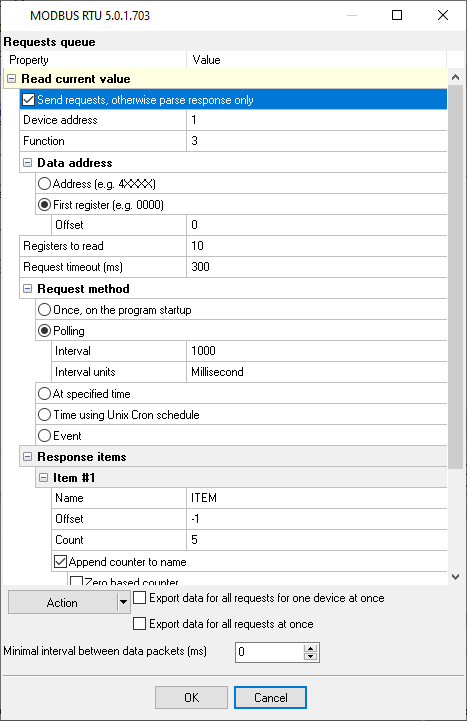
MODBUS RTU query queue: custom configuration to read different registers.
Ready to connect MODBUS RTU to PostgreSQL?
2. Database Setup: PostgreSQL
Install the PostgreSQL ODBC Driver (psqlODBC) on the server running Advanced Serial Data Logger. Create a System DSN or use a direct connection string in the SQL Database Professional plugin like 192.168.1.100:mydatabase.
Use the following SQL script to create your target table. Ensure your user role has INSERT privileges for the target schema. Use the NUMERIC data type to prevent floating-point precision loss from raw sensor data.
CREATE TABLE rs232_logs (
  id SERIAL PRIMARY KEY,
  log_timestamp TIMESTAMP DEFAULT CURRENT_TIMESTAMP,
  device_name VARCHAR(50),
  extracted_value NUMERIC(10, 2)
);
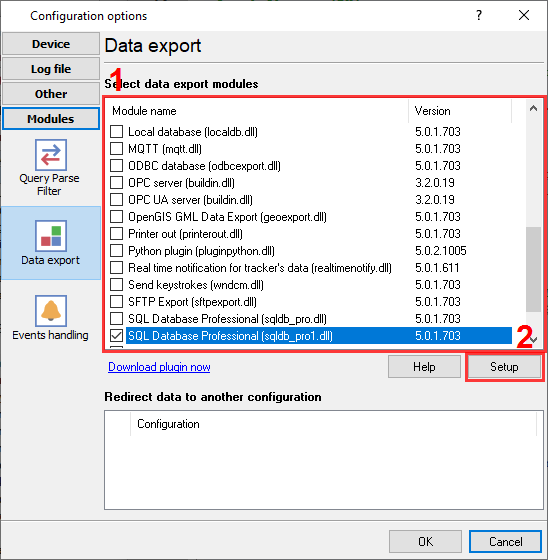
PostgreSQL database connector selection.
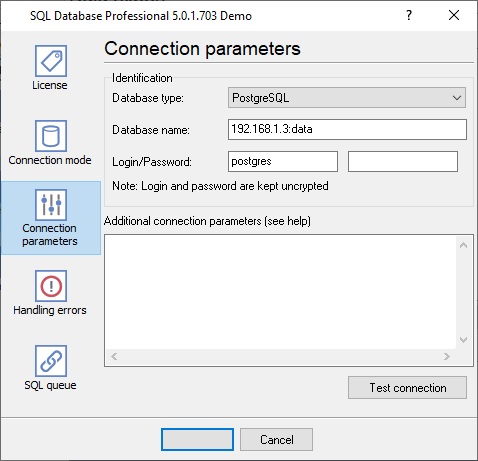
PgSQL database connection settings.
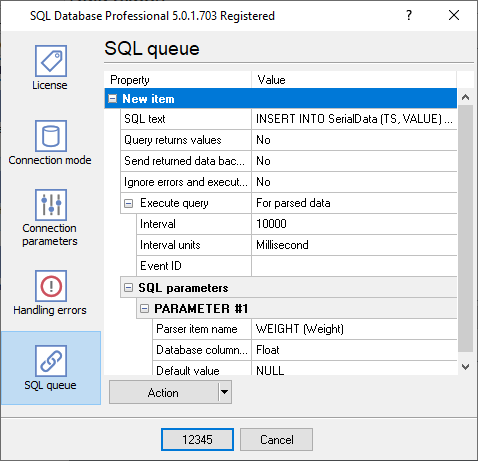
SQL queue to insert data in your table.
3. Protocol-Specific Troubleshooting
- Timeout or CRC errors: Unlike TCP, serial MODBUS RTU relies on strict timing. Verify that your RS485 A/B wires are not inverted, and that the baud rate and device ID in the software exactly matches the slave device.
- The device returns the "Illegal address" error code: Try to use the function #3 instead of the function #4 in your MODBUS request. Otherwise, verify that you are using the correct registe address. Try to specify an absolute offset (not logical address like 40001).
- I have several values that I want to export in one data row. Now, the logger writes one value per row: You need to enable the "Export all data at once" option in the MODBUS plugin settings.
4. Database-Specific Troubleshooting
- FATAL: password authentication failed: Verify that your pg_hba.conf file allows connections from the Data Logger's IP address (if remote) and that the authentication method is set to md5 or scram-sha-256.
- I have two similar records with the same timestamp in my database for every record: Verify that you do not use two data export plugins at the same time. For example, ODBC Database and SQL Database Pro because they can export your data in parallel.
- I've installed ODBC drivers and created a DSN, but your software does not allow me to select it.: Our software requires 32-bit ODBC drivers. Therefore, you should install this version of drivers to create a DSN in the 32-bit ODBC Administrator. You can use the 'Setup' button in the 'ODBC Database' plugin to do it.