
Polling And Logging Laboratory Instruments to Postgre SQL
A complete guide to read data from RS232 laboratory instruments and exporting parsed values directly into a PostgreSQL database with your database structure.
1. Protocol Configuration: Laboratory Instruments
Communication Type: Passive Listening / Bidirectional (RS232 or USB Virtual COM)
Spectrophotometers, titrators, and blood analyzers often use proprietary ASCII formats or ASTM E1381/E1394 protocols. If the instrument outputs raw ASCII, use the 'ASCII Data Parser'. If it uses ASTM, you must use the dedicated 'ASTM Data Parser' plugin to correctly unpack the Header (H), Patient (P), Order (O), and Result (R) records.
Apply this base configuration for the serial connection:
{
  "port": "COM4",
  "baud_rate": 9600,
  "data_bits": 8,
  "stop_bits": 1,
  "parity": "none",
  "parser_type": "astm_e1381",
  "ack_nak_handshake": true
}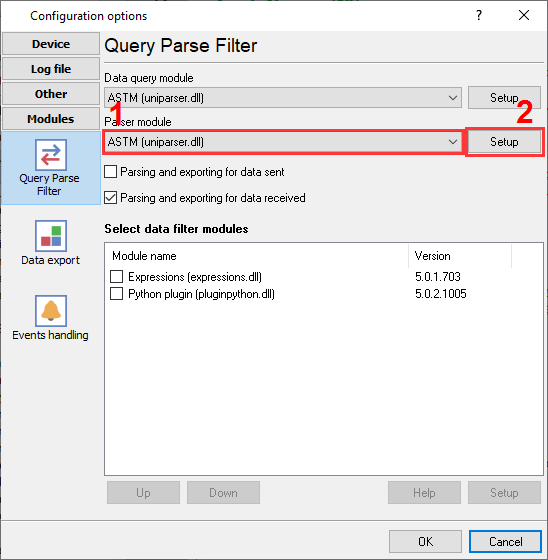
Lab instruments data parser.
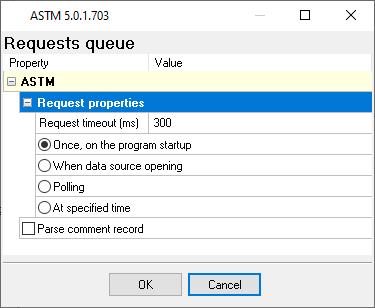
ASTM protocol parser settings.
Ready to connect Laboratory Instruments to PostgreSQL?
2. Database Setup: PostgreSQL
Install the PostgreSQL ODBC Driver (psqlODBC) on the server running Advanced Serial Data Logger. Create a System DSN or use a direct connection string in the SQL Database Professional plugin like 192.168.1.100:mydatabase.
Use the following SQL script to create your target table. Ensure your user role has INSERT privileges for the target schema. Use the NUMERIC data type to prevent floating-point precision loss from raw sensor data.
CREATE TABLE rs232_logs (
  id SERIAL PRIMARY KEY,
  log_timestamp TIMESTAMP DEFAULT CURRENT_TIMESTAMP,
  device_name VARCHAR(50),
  extracted_value NUMERIC(10, 2)
);
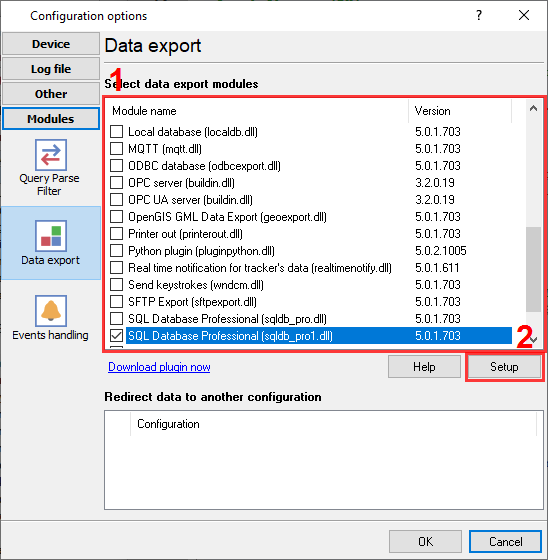
PostgreSQL database connector selection.
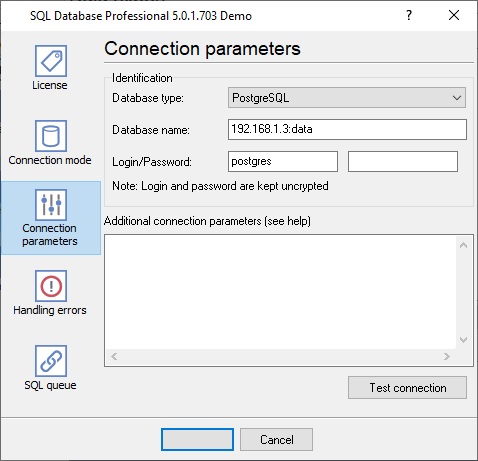
PgSQL database connection settings.
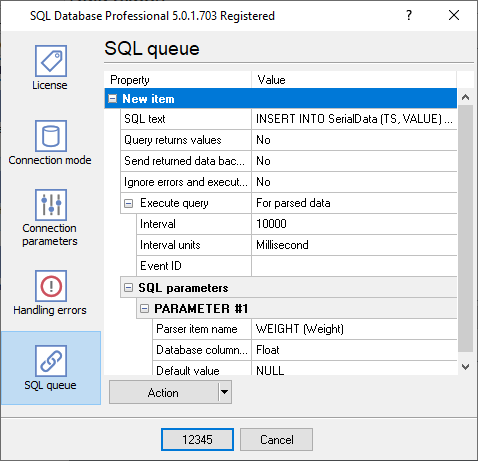
SQL queue to insert data in your table.
3. Protocol-Specific Troubleshooting
- The instrument does not send data at all: Some instruments send data only when you press the "Print" button on it or require a special command from the host computer.
- The instrument sends one record and then stops transmitting: Many lab instruments require an ACK (Acknowledge) character after receiving a data block. Enable the 'ACK/NAK handshake' feature in the Data Logger so it replies and prompts the instrument to send the next batch.
- The program does not extract all data. Some fields are missed: By default, the logger extracts significant data only. You can create your parser using ASCII Data Parser plugin or ask our support team.
4. Database-Specific Troubleshooting
- FATAL: password authentication failed: Verify that your pg_hba.conf file allows connections from the Data Logger's IP address (if remote) and that the authentication method is set to md5 or scram-sha-256.
- I have two similar records with the same timestamp in my database for every record: Verify that you do not use two data export plugins at the same time. For example, ODBC Database and SQL Database Pro because they can export your data in parallel.
- I've installed ODBC drivers and created a DSN, but your software does not allow me to select it.: Our software requires 32-bit ODBC drivers. Therefore, you should install this version of drivers to create a DSN in the 32-bit ODBC Administrator. You can use the 'Setup' button in the 'ODBC Database' plugin to do it.