
Polling And Logging Weight Scales to Excel or OpenOffice
A complete guide to read data from weight scales and balances and exporting parsed values directly into a Excel or OpenOffice sheets with your value-column binding.
1. Protocol Configuration: RS232 Weight Scale
Communication Type: Passive Listening (Continuous or Print-on-Demand)
Most industrial scales send ASCII strings terminated by a Carriage Return (CR) and Line Feed (LF). Use the software's 'ASCII Data Parser' module and set the data packet signature to ending characters '#0D#0A'. You can then extract the numeric weight by specifying fixed column positions or using a regular expression. Furthermore, the logger contains pre-defined parsers for the most popular scales.
Apply this base configuration for the serial connection:
{
  "port": "COM1",
  "baud_rate": 9600,
  "data_bits": 8,
  "stop_bits": 1,
  "parity": "none",
  "flow_control": "hardware",
  "packet_end": "#0D#0A"
}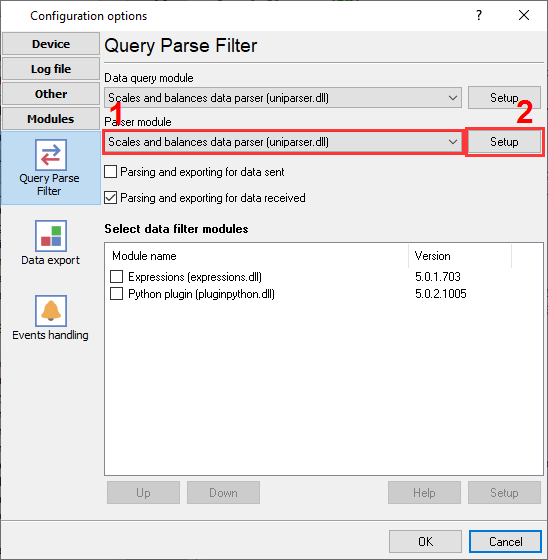
Weight scales and balanced plugin selection to poll a device and parse incoming data.
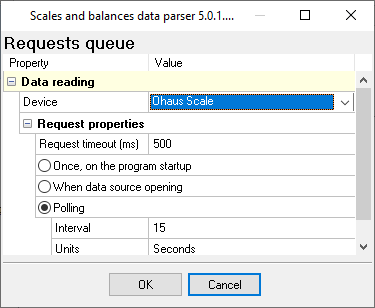
Weight scales and balanced plugin configuration: weight scale type and polling interval.
Ready to connect RS232 Weight Scale to Microsoft Excel?
2. Database Setup: Microsoft Excel
Use the 'Direct Excel Connection' or 'Local Database' export plugin. RS232 Data Logger uses OLE/DDE to write directly to .xlsx or .csv files, meaning MS Office does not strictly need to be installed on the server.
Use the following SQL script to create your target table. Limit active files to 1 million rows (Excel's maximum). Use the software's 'Log File Rotation' feature to automatically create a new Excel workbook daily or weekly to prevent file corruption.
No SQL required. Create an Excel template with headers in Row 1 (e.g., Timestamp | Port | Value). The software will automatically append new incoming serial data starting at Row 2.
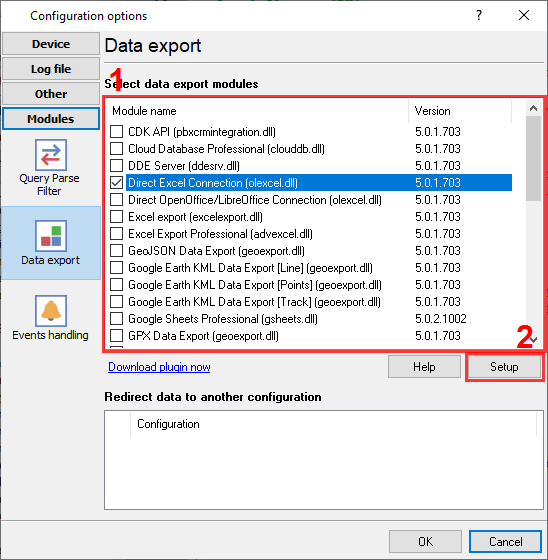
Direct Excel connector selection.
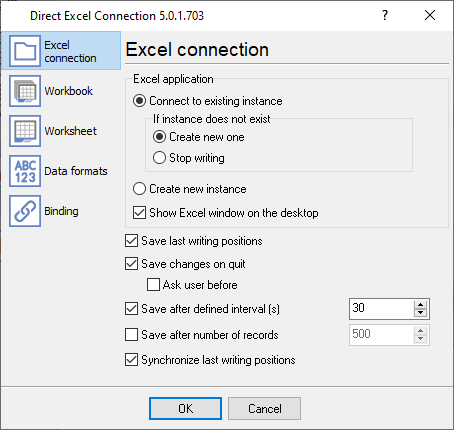
Excel file location and naming.
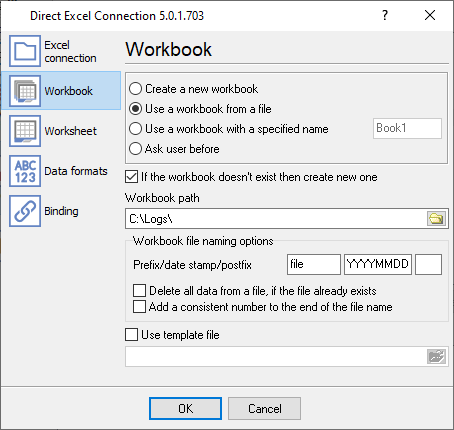
Excel workbook settings.
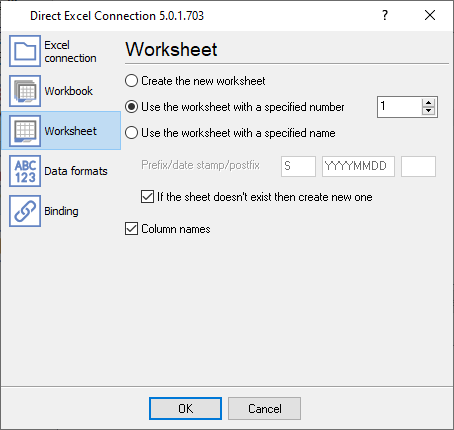
Excel worksheet settings.
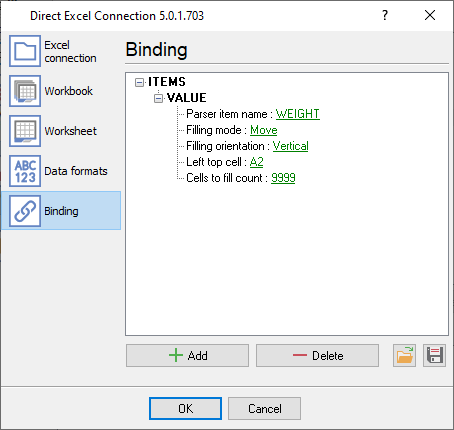
Binding: assign your parser data to columns
3. Protocol-Specific Troubleshooting
- Garbage characters appearing on the screen: This almost always indicates a baud rate or parity mismatch. 9600-8-N-1 is standard, but older Mettler Toledo or Ohaus scales frequently use 2400 baud or 7-Even-1 parity. Check the hardware manual.
- Is it possible to process stable weight only and ignore intermediate values?: Use one of our filter plugins, and for example, ignore all records without the "stable" signature in a data packet.
- Is it possible to process weight values greater that 100.0 kg?: The Expressions filter plugin allows you to using any math expression For example, the following command: DISCARD_DATA_PACKET_IF(WEIGHT < 100).
4. Database-Specific Troubleshooting
- File is locked or cannot be written to: If a user has the target Excel file open on their desktop, the logger cannot write live data to it. Schedule your data exports during off-hours, or log to a temporary CSV first.
- Excel shows a strange number instead of a date value: This is a formatting issue. You can select a colum data type in our software as 'datetime' and select the necessary date format.
- How can I add column headers for my data: You can create an empty template file and specify it in the settings. When the logger starts a new file, it copies this template to the destination folder, and starts writing data from the configured cell.
- How to use data in the Excel file while the logger writes data to it?: Unfortunately, it is not possible. But, for example, you can create a new Excel file more frequently and use a closed (previous) Excel file for your needs. Or use a database instead and link to your sheet as a data source.