
Logging Data From Laboratory Instruments to MS SQL Database In Real-Time
A complete guide to polling RS232-interfaced laboratory instruments and exporting the captured data directly into a MsSQL database with your database structure.
1. Protocol Configuration: Laboratory Instruments
Communication Type: Passive Listening / Bidirectional (RS232 or USB Virtual COM)
Spectrophotometers, titrators, and blood analyzers often use proprietary ASCII formats or ASTM E1381/E1394 protocols. If the instrument outputs raw ASCII, use the 'ASCII Data Parser'. If it uses ASTM, you must use the dedicated 'ASTM Data Parser' plugin to correctly unpack the Header (H), Patient (P), Order (O), and Result (R) records.
Apply this base configuration for the serial connection:
{
  "port": "COM4",
  "baud_rate": 9600,
  "data_bits": 8,
  "stop_bits": 1,
  "parity": "none",
  "parser_type": "astm_e1381",
  "ack_nak_handshake": true
}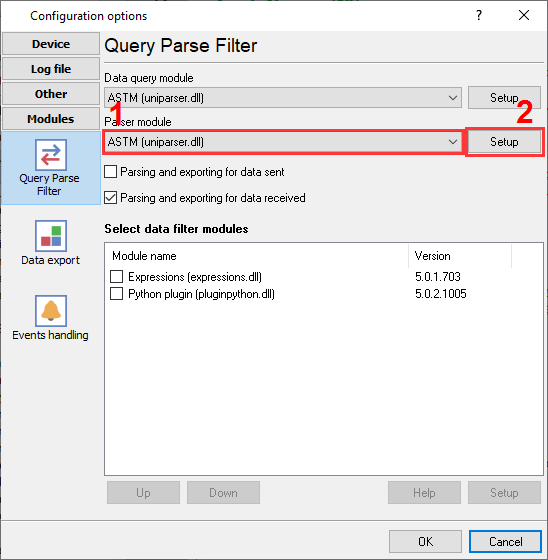
Lab instruments data parser.
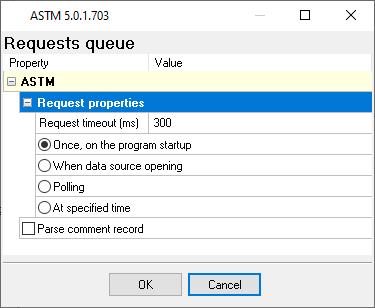
ASTM protocol parser settings.
Ready to connect Laboratory Instruments to Microsoft SQL Server?
2. Database Setup: Microsoft SQL Server
Use the built-in SQL Server Native Client or OLE DB provider within the Data Logger's ODBC export module. Windows Authentication is seamlessly supported if the logger service account has database access.
Use the following SQL script to create your target table. Use DATETIME2 instead of DATETIME for higher precision timestamping, which is critical for high-frequency industrial serial logging.
CREATE TABLE SerialData (
  RecordID INT IDENTITY(1,1) PRIMARY KEY,
  LogTime DATETIME2 DEFAULT SYSUTCDATETIME(),
  PortID NVARCHAR(20),
  SensorReading FLOAT
);
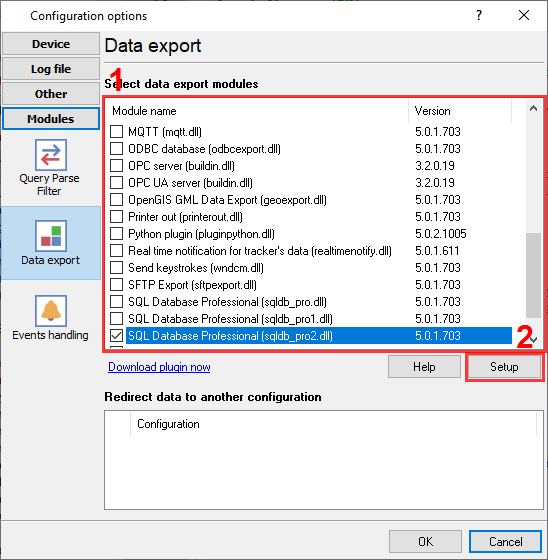
Microsoft SQL Server connector in our logger.
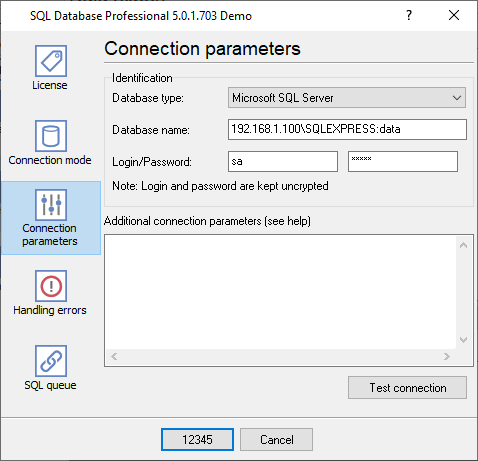
SQLServer database connection settings. For example, SQL Express
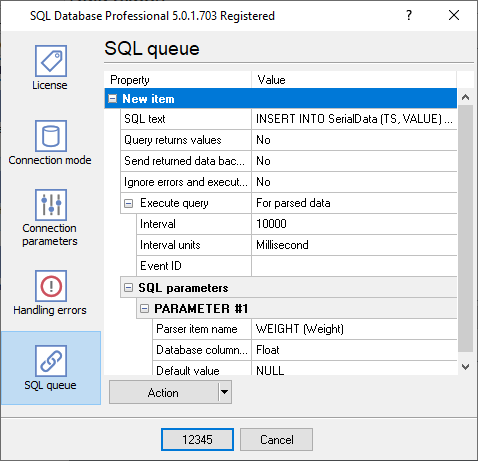
SQL queue.
3. Protocol-Specific Troubleshooting
- The instrument does not send data at all: Some instruments send data only when you press the "Print" button on it or require a special command from the host computer.
- The instrument sends one record and then stops transmitting: Many lab instruments require an ACK (Acknowledge) character after receiving a data block. Enable the 'ACK/NAK handshake' feature in the Data Logger so it replies and prompts the instrument to send the next batch.
- The program does not extract all data. Some fields are missed: By default, the logger extracts significant data only. You can create your parser using ASCII Data Parser plugin or ask our support team.
4. Database-Specific Troubleshooting
- Login failed for user / Access Denied: If running RS232 Data Logger as a background Windows Service, ensure the service is running under a domain account with db_datawriter roles, rather than the default 'Local System' account. Or create a separate user with the 'SQL Server' authentication method.
- What if my database is offline? Will I lose my data?: Use the SQL Database Pro plugin. It can write data to a temporary file while your database is offline and restore it later.
- The code only works when you send numbers. When I'm trying to send a letter, it does not work.: 1. You should declare the parser variable as a string. 2. Your table should contain the column with the 'VARCHAR' or 'NVARCHAR' type. The size of this column should be enough for your data. 3. You should select the 'string' data type for the corresponding column in the data export plugin on the 'Binding' page.